Elevating Strategic Metrics with Power BI and Cloud Integration
Keeping shared data files in sync with your Power BI reports

TLDR; Without the installation of additional software the only way to keep published Power BI file synced with the latest data in local Excel files is with SharePoint or OneDrive via their URL connection strings. When setting up the initial data load, make sure to use “Connect to SharePoint” and do not make the mistake of connecting a your local SharePoint folder on your machine.
The Challenge
If you're relying on Power BI for your analytics, you might find yourself caught in a tedious loop of manual updates to ensure your reports reflect the latest metrics from your team's Excel files. Yet, there's a streamlined approach that leverages cloud technology to keep your strategic metrics aligned with real-time changes.

In the fast-paced world of strategic management, maintaining up-to-date accuracy in metrics is crucial. The challenges of keeping diverse teams aligned on the latest data, especially when dealing with files updated by multiple stakeholders, can significantly impact decision-making processes.
Identifying the Bottleneck
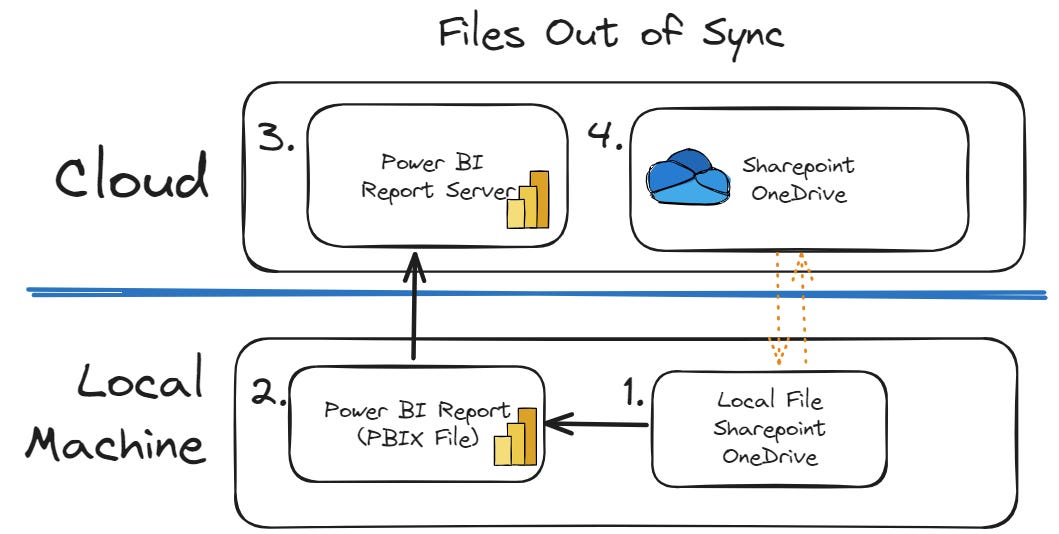
The conventional method involves a local file system where Excel files are updated, necessitating a manual refresh of your Power BI reports, followed by saving and republishing to ensure the latest data is available in the cloud. This approach not only consumes valuable time but also introduces delays in data reflection, which could lead to strategic missteps. The underlying issue is the disconnection between local updates and the cloud environment where Power BI reports reside, leading to a gap in data synchronization.
Correct Workflow
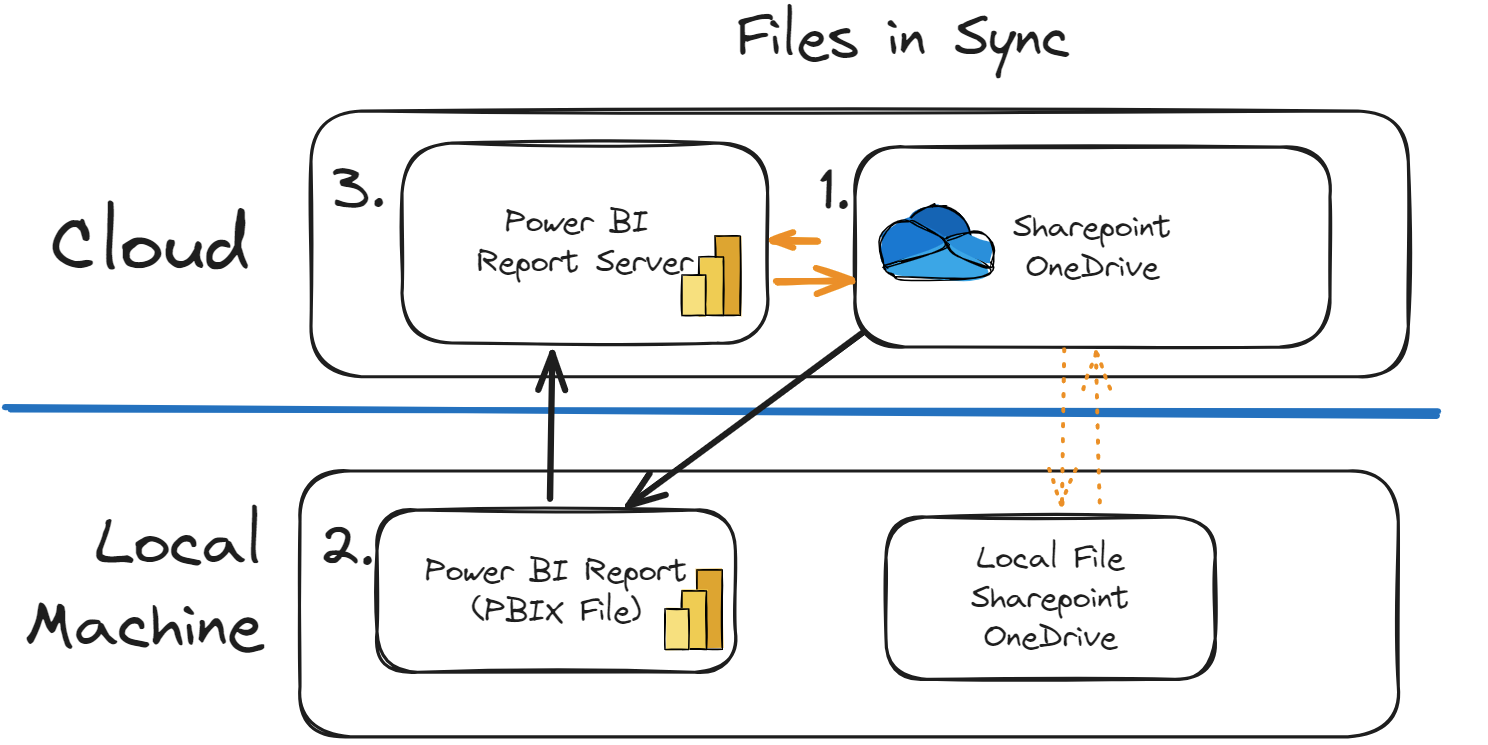
The essence of a more effective strategy lies in cloud connectivity. By shifting the focus from local file systems to direct integration with SharePoint or OneDrive, where your Excel files are stored, you can automate the data refresh process in Power BI. This pivot not only enhances efficiency but also ensures that strategic metrics are consistently up-to-date, facilitating more informed decision-making.
Implementing the Change
To transition to a cloud-integrated approach, consider the following steps:
Align Accounts: Ensure that your Power BI and SharePoint or OneDrive accounts are synchronized, using the same credentials for seamless integration.
Maintain Connectivity: Stay logged into Power BI to prevent disruptions in data flow, keeping in mind the platform's timeout features.
Link to the Cloud: Connect your Power BI directly to the Excel files stored on SharePoint or OneDrive, enabling real-time data synchronization.
Connecting to SharePoint URL
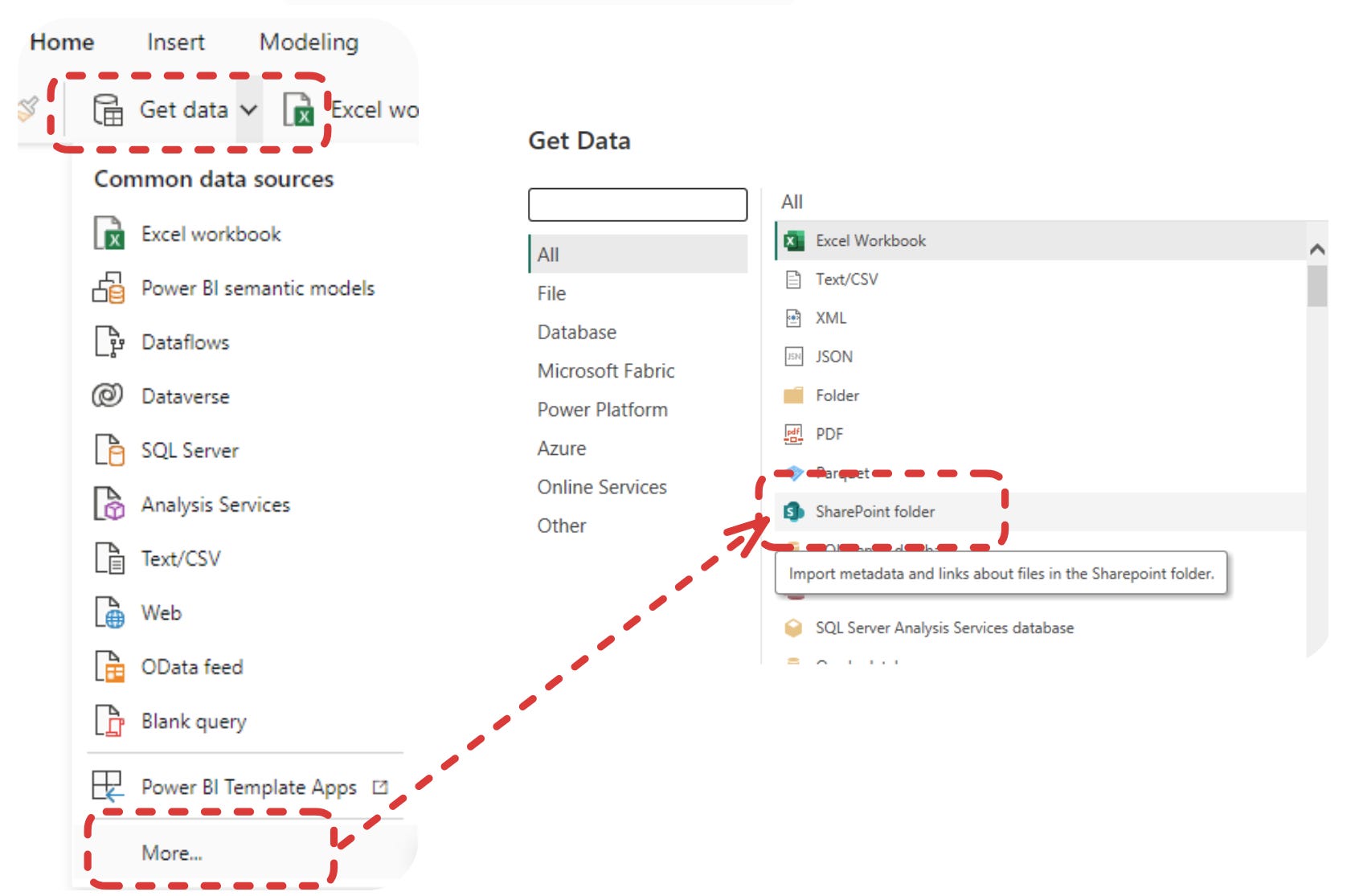
The process is relatively easy, all you need to do is have the SharePoint URL handy, and make sure you are using the same log in credentials for both your Power BI file, and the SharePoint account you wish to connect to.
Conclusion
For leaders and teams focused on strategic metrics, moving to a cloud-based synchronization model with Power BI is a transformative step. It removes the friction of manual updates, bridges the gap between data generation and analysis, and ensures that strategic decisions are informed by the most current data. As we navigate an increasingly data-driven world, the ability to swiftly adapt and respond to new information is paramount. By leveraging cloud integration for strategic metrics, organizations can achieve a competitive edge through enhanced responsiveness and informed decision-making.